
Using the Feed
The feed tells you when a newly published disclosure reaches software on your fleet. You can open an investigation into it with one click, or let the feed open investigations on its own within a daily number you set.
What the feed is for
Section titled “What the feed is for”Most published disclosures about malicious or vulnerable packages never touch your fleet. The feed shows you only the ones that do.
It checks each new disclosure against the software Furl sees on your endpoints, including npm packages reported by Furl’s agent. At launch, it covers malicious npm packages reported to the OSV database.
Turning the feed on
Section titled “Turning the feed on”Prerequisites
Section titled “Prerequisites”To see and change this page, you need:
- Access to admin settings and to Forge, to see it.
- Permission to change autonomy settings, to change it. Without it, the controls are shown but disabled, and there is no Save button.
Feed matching
Section titled “Feed matching”- Go to Settings → Feed.
- Turn on Feed matching: “Check new supply-chain advisories against your fleet as they publish.”
- Select Save. You see “Feed settings saved.”
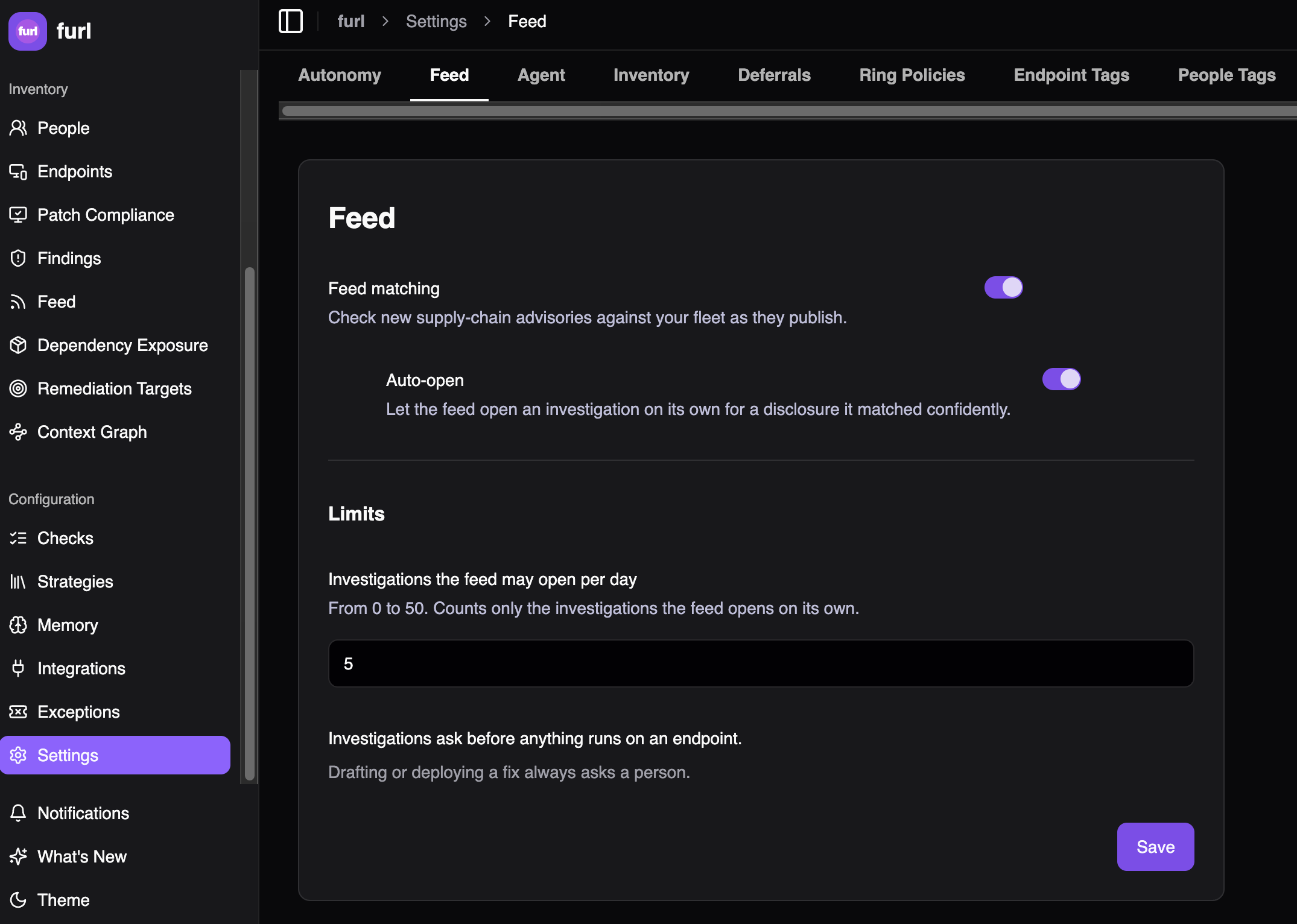
Under Limits, the page shows how many investigations the feed may open per day (see Letting the feed open investigations), and that investigations ask before anything runs on an endpoint.
What happens next. Furl checks for new disclosures every few minutes. Feed and Dependency Exposure appear in the sidebar, and matches start arriving as new disclosures are published. Disclosures modified in the last 30 days are also checked against your fleet over the following cycles, so the feed may fill with recent ones soon after you turn it on. Older disclosures are not checked.
Turning it off. Turn off Feed matching and select Save. Feed and Dependency Exposure leave the sidebar, and their pages are no longer available. Your Auto-open choice is kept for when you turn it back on.
Reading a disclosure
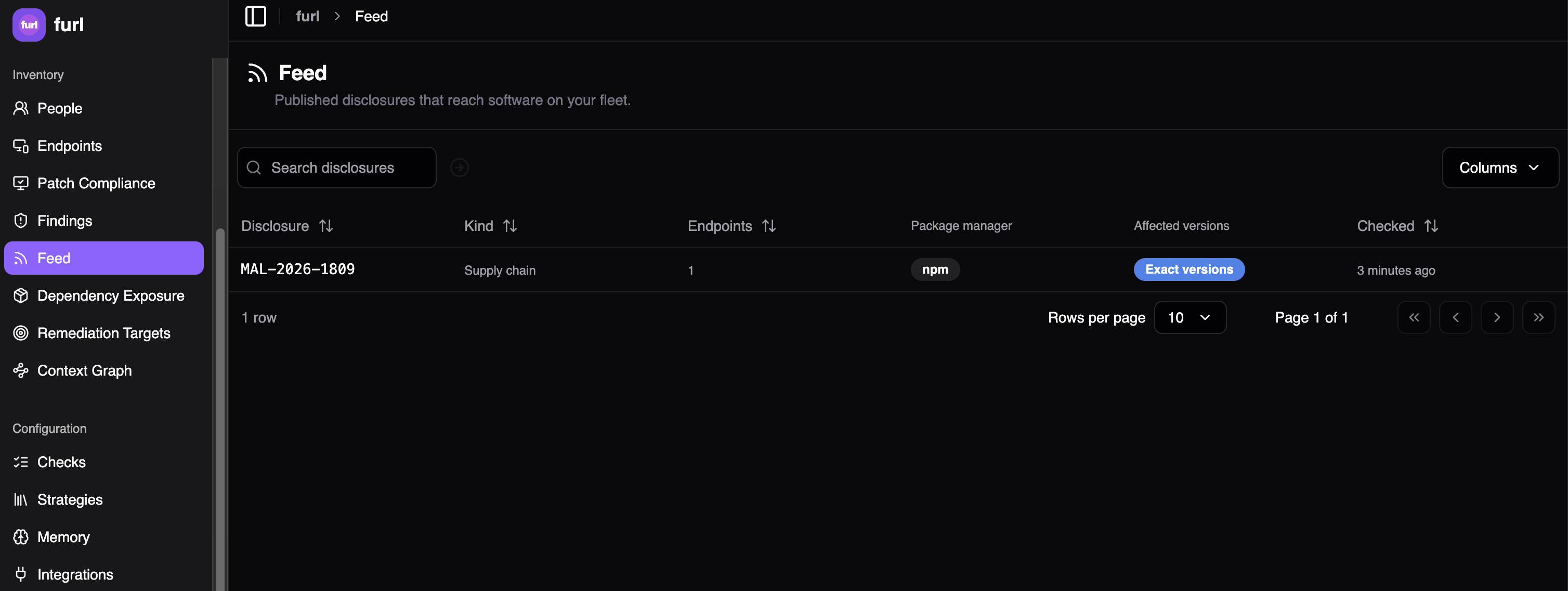
Section titled “Reading a disclosure”The Feed page lists “Published disclosures that reach software on your fleet.” Each row is one disclosure. A disclosure can have several reports, for example when the source revises it, or when Furl rechecks it against your fleet. The row shows “N reports” when it has more than one.
The list shows the 200 newest disclosures, newest first. Use Search disclosures to find one. When there are more than 200, the page says so, and sorting and search cover only the 200 shown.
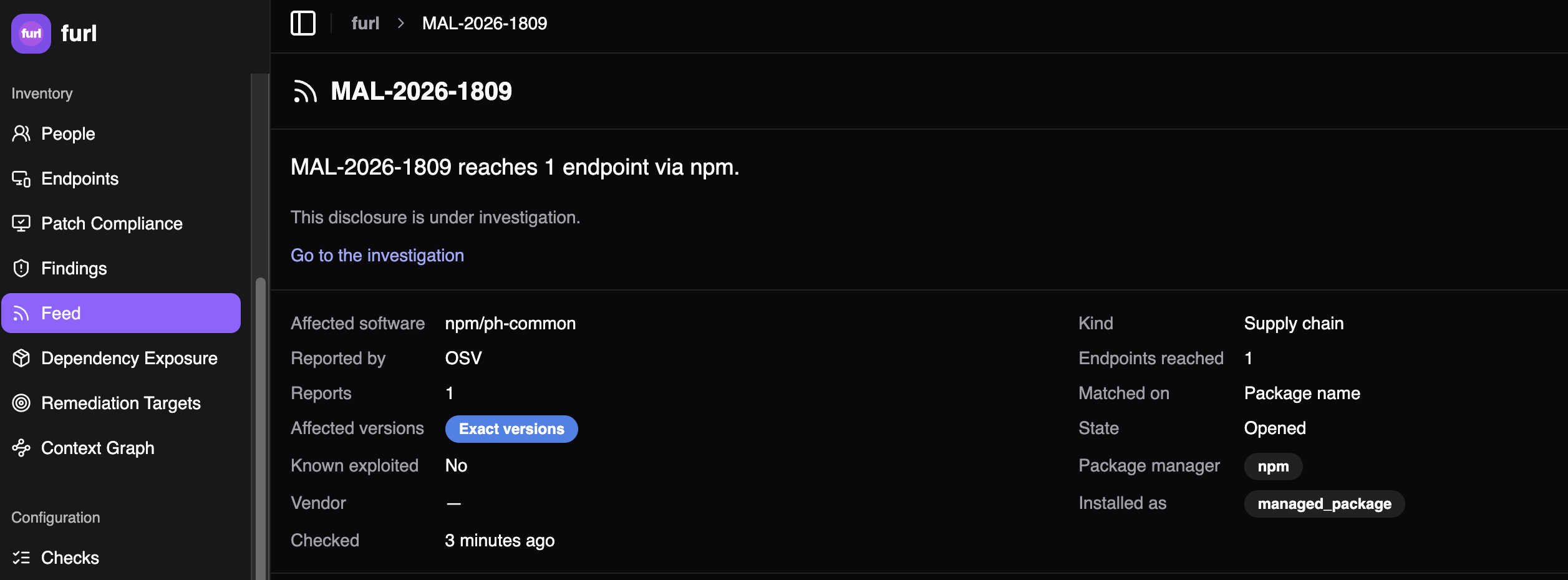
Select a row to open its details pane. Its headline says how far the disclosure reaches, for example “MAL-2026-1809 reaches 1 endpoint via npm.” The “via npm” part is left out when more than one package manager matched.
Its fields include Affected software, Reported by, Reports, Matched on, Package manager, Installed as and Checked.
Each disclosure also has its own page, which you can share as a link. Open it with View disclosure in Forge, or by Ctrl- or Cmd-clicking the disclosure in the list.
Endpoints affected
Section titled “Endpoints affected”Endpoints is the number of your endpoints with an affected version installed, from the disclosure’s current reports. When its advisories list several affected ranges, it shows the largest of their counts, so the true total can be higher. For disclosures modified in the last 30 days, Furl rechecks this as your fleet changes, so the number can go up or down.
Version scope
Section titled “Version scope”Affected versions says how precise the match is. Hover over it, or focus it, for the full explanation.
| Badge | What it means |
|---|---|
| Exact versions | The source named the affected releases, and your install is one of them. The strongest match |
| Range | The source gave a version range, and your install falls inside it |
| Whole package | The source said every version is affected |
| Undetermined | The source gave nothing to compare a version against, so every install matched by default |
Treat Undetermined with more doubt than the others. It is the absence of version information, not a verdict.
When Furl cannot read an installed version, it counts the install as affected, because it might be.
Matched on
Section titled “Matched on”Matched on says how the feed tied the disclosure to your software. Exact software means it matched the software itself. Package name means it matched only the package’s name, so it can be a different package with the same name. Auto-open never opens a Package name match.
Who fixes the exposure
Section titled “Who fixes the exposure”Who can fix it decides where a disclosure appears.
- Feed: software Furl can act on, such as a package installed directly on an endpoint.
- Dependency Exposure: a package that is present only as a dependency of something else. “Whoever owns the manifest fixes these by updating it and rebuilding.” Furl lists these so you can hand them to that owner, and does not investigate them.
The Dependency Exposure page lists one row per package, with its ecosystem, the disclosures that name it, and the endpoints that have it. When none of the installs Furl found has a readable version, the count also says how many are unreadable. You can search it by disclosure ID. It has no actions.
What an investigation does
Section titled “What an investigation does”An investigation confirms which endpoints are exposed and at which installed version, then drafts the remediation. Anything that would run on an endpoint, and any deployment, waits for a person to approve it. Lookups in data Furl already holds, and web research, run on their own.
An investigation works on at most 20 endpoints. When more are affected, it takes 20 of them as a sample, and its opening message says so.
Opening an investigation yourself
Section titled “Opening an investigation yourself”Investigate any disclosure in one click. This works whether or not auto-open is on, and does not count toward the auto-open daily number.
- Open Feed from the sidebar and select the disclosure’s row.
- Select Investigate in the details pane that opens.
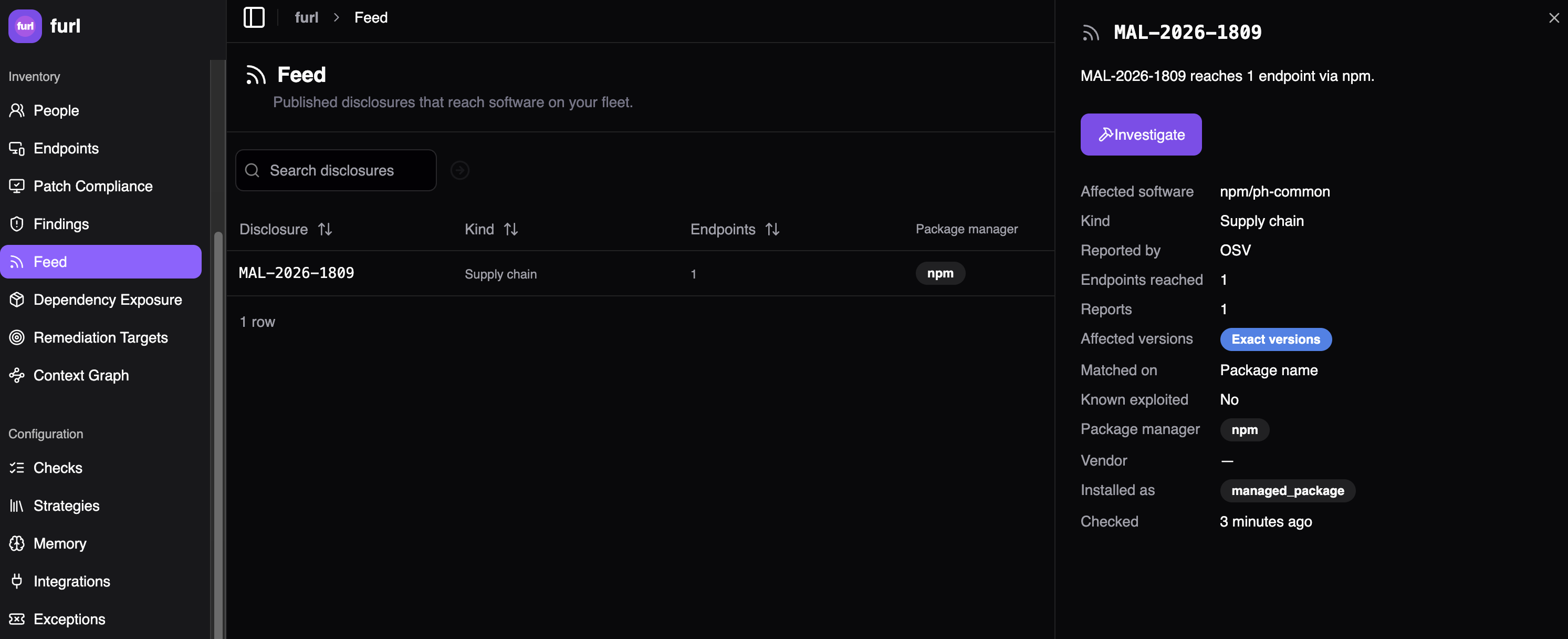
It opens an investigation in Forge and takes you there. There is no confirmation step. The disclosure then leaves the queue.
If someone already opened one, the pane shows “This disclosure is under investigation.” and Go to the investigation in place of Investigate. If Furl cannot open one, it says why beside the button.
When to investigate. Start with the rows that reach the most endpoints and have the most precise version scope. An Exact versions match on many endpoints is the strongest case.
If a disclosure’s page says it “is not present on your fleet”, Investigate checks your fleet again. If the package is gone, it says so and opens nothing.
Letting the feed open investigations
Section titled “Letting the feed open investigations”The feed can start the work for you. When it matches a disclosure on Exact software that reaches at least one endpoint and that Furl can fix, it opens the investigation on its own, strongest matches first. Exposure is being confirmed and a fix drafted before anyone checks the queue. These investigations work like ones you open: anything that runs on an endpoint, and any deployment, waits for a person. You set how many it may open per day.
Auto-open does not reopen a disclosure whose investigation you deleted, unless the source later changes the affected versions or a new advisory names the package. You can still open one yourself.
Auto-open
Section titled “Auto-open”In Settings → Feed, with Feed matching on, turn on Auto-open: “Let the feed open an investigation on its own for a disclosure it matched confidently.” It is off until you turn it on.
Investigations per day
Section titled “Investigations per day”Under Limits, set Investigations the feed may open per day, from 0 to 50. It starts at 5. The count is per UTC day, and covers only the investigations the feed opens on its own.
When a disclosure leaves the feed
Section titled “When a disclosure leaves the feed”A disclosure can leave the feed while you are looking at it. The feed lists only disclosures waiting on you, so a row disappears when one of these happens:
- Someone opened an investigation for it: you, a colleague or auto-open. Look in Forge: investigations opened from the feed are marked “From the feed”, and the Feed filter shows only those. Each links back to its disclosure with View disclosure. When auto-open opened it, your admins also got a notice in Furl.
- It turned out to be a dependency someone else fixes in their build. Look on Dependency Exposure.
- The package no longer reaches any endpoint.
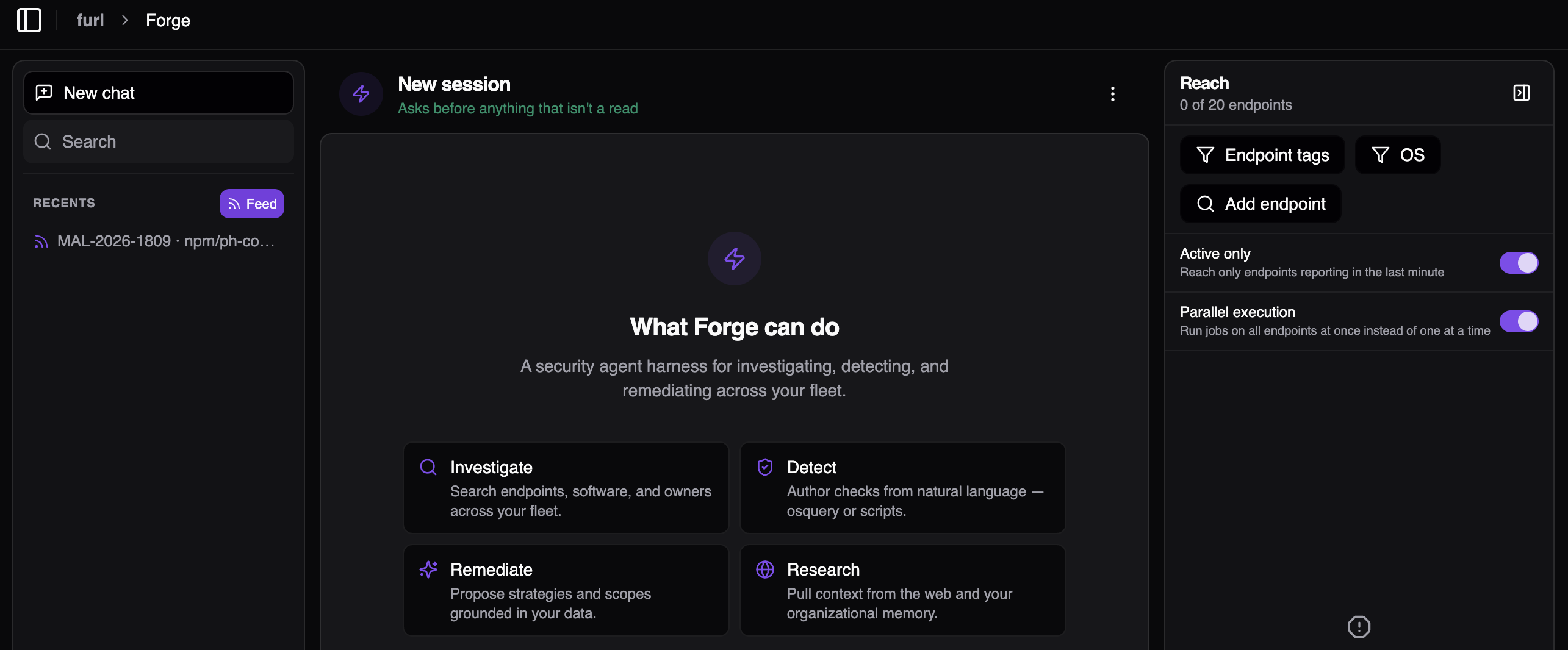
If you select Investigate on a disclosure that has changed this way, Furl tells you why. If its investigation was deleted, it comes back. See Following an investigation as the disclosure changes.
“Nothing is waiting on you here” means the queue is empty.
Following an investigation as the disclosure changes
Section titled “Following an investigation as the disclosure changes”Sources revise disclosures. They change the affected versions or the severity, add a related advisory, or withdraw one. Your fleet also changes.
While an investigation is open, Furl tells it about each change. A message in the investigation starts “The vulnerability feed has new information for this investigation.” It lists what changed, including endpoints newly affected since it was last told, and asks the investigation to reconsider. Deployment still waits for you.
Furl sends these updates only after the investigation has replied once. Changes found in the same check arrive as one message.
If you delete the investigation, from the ⋮ menu in Forge, the disclosure returns to the feed with the note “An earlier investigation ended” and when. Deleting is not confirmed. You can open a new investigation from there.
Notices
Section titled “Notices”- When a person opens an investigation from the feed, notification channels that subscribe to Investigation opened get a message. New channels subscribe to it by default, and existing channels must turn it on.
- When the feed opens one on its own, your admins get a notice in Furl, “Furl opened an investigation into …”, with a link to it. Channels that subscribe to Investigation opened get it too.
Limits
Section titled “Limits”What the feed does not do:
- It never deploys a fix on its own. Drafting or deploying a fix always asks a person.
- It does not notify anyone when a disclosure arrives. The feed is a page in Furl. Notices go out only when an investigation is opened from it. See Notices.
- It does not fix packages you install as dependencies. Those belong to whoever owns the manifest, and are listed on a separate page. See Who fixes the exposure.
- It does not cover CVEs yet.
There is no way to dismiss a disclosure from the queue today.
The daily spend limit
Section titled “The daily spend limit”Feed investigations use AI models, and Furl sets a daily limit on that spend for your organization. You cannot change it in Settings. Contact Furl if it does not fit your use.
The limit covers every investigation opened from the feed, whether a person or auto-open opened it. It resets at 00:00 UTC.
When the limit is reached:
- The Feed page shows “Feed investigations are paused for today. They resume at” your local time for 00:00 UTC.
- A message you send in a feed investigation is not processed. The investigation shows a note that the organization has reached its daily spending limit for feed-triggered investigations. Send it again after the reset.
- An approval you give is not processed. The request stays waiting. Decide again after the reset.
- Investigate, and auto-open, still open an investigation, but it does not start. Send a message in it after the reset.
- Updates about changed disclosures wait, and are sent again after the reset, within about an hour.
A turn that is already running finishes, so spend can go slightly over the limit.